Installation
Through Dashboard
- Log in to the WordPress Dashboard.
- Go to Appearance > Themes.
- Click on Add New Theme.
- Click on Upload Theme button.
- Click on Choose File button and select skt-copywriter.zip then click on Install Now button and wait for the install to complete.
- After the theme installed successfully, click on Activate button.
Manual Installation using FTP
- Unzip skt-copywriter.zip to your Desktop.
- Use an FTP client to access your host web server. Go to /wp-content/themes/
- Upload theme to /wp-content/themes/.
- Go to Appearance > Themes and activate theme from Dashboard.
Theme Setup
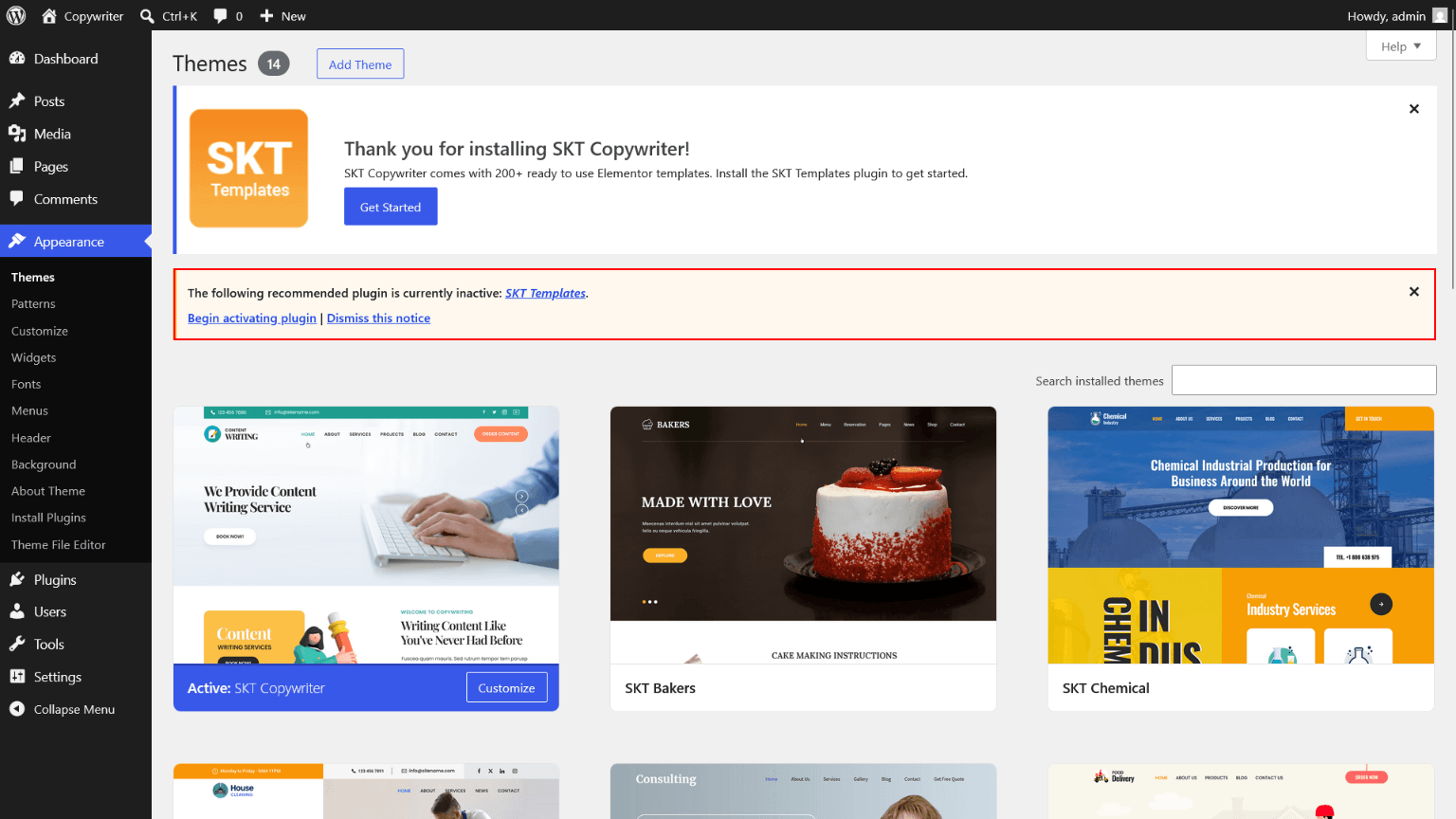
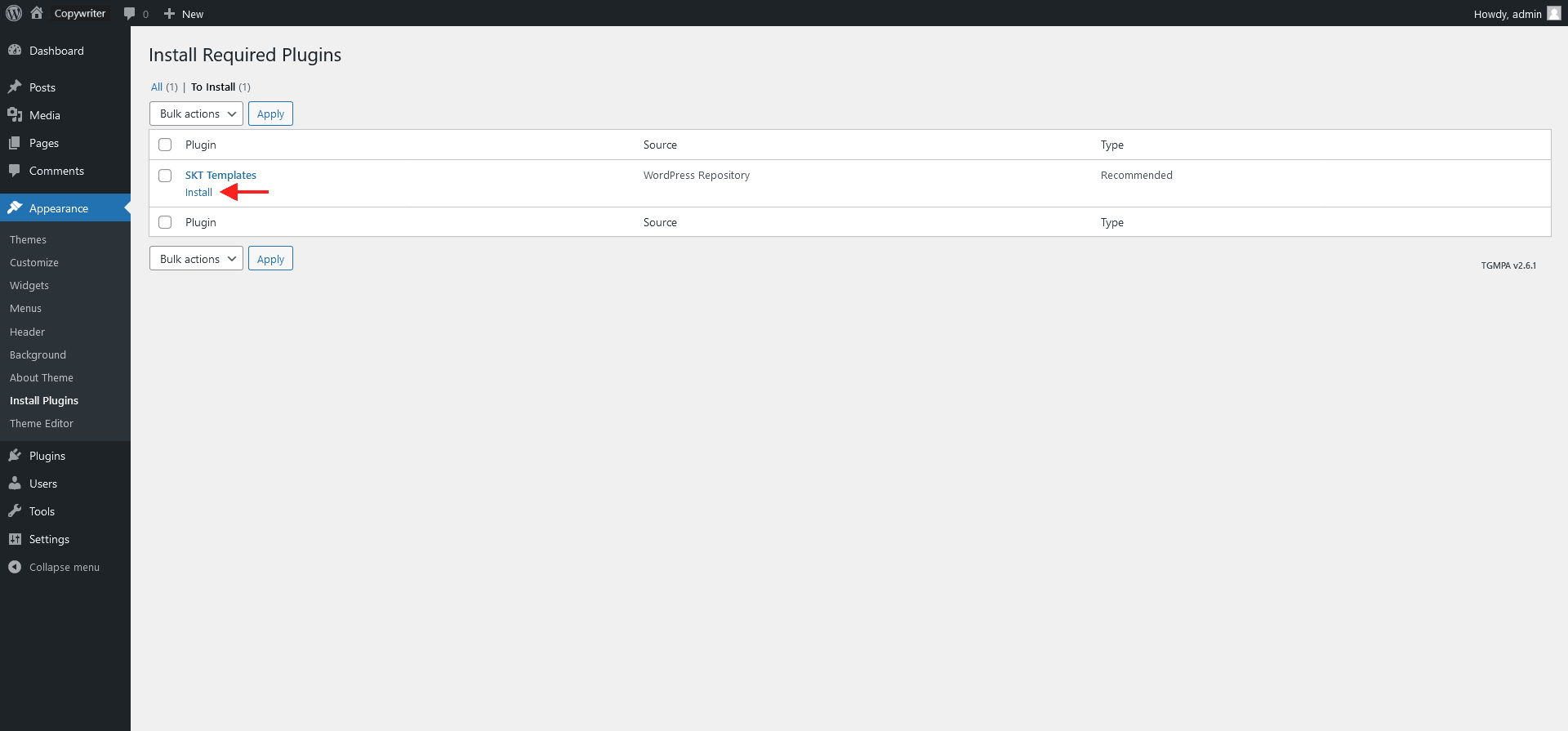
After activating theme on screen comes "Thank you for installing SKT Copywriter!" popup message which says "Install the SKT Templates" plugin which is required for theme. So simply click on "Begin installing plugin" and follow further below steps.
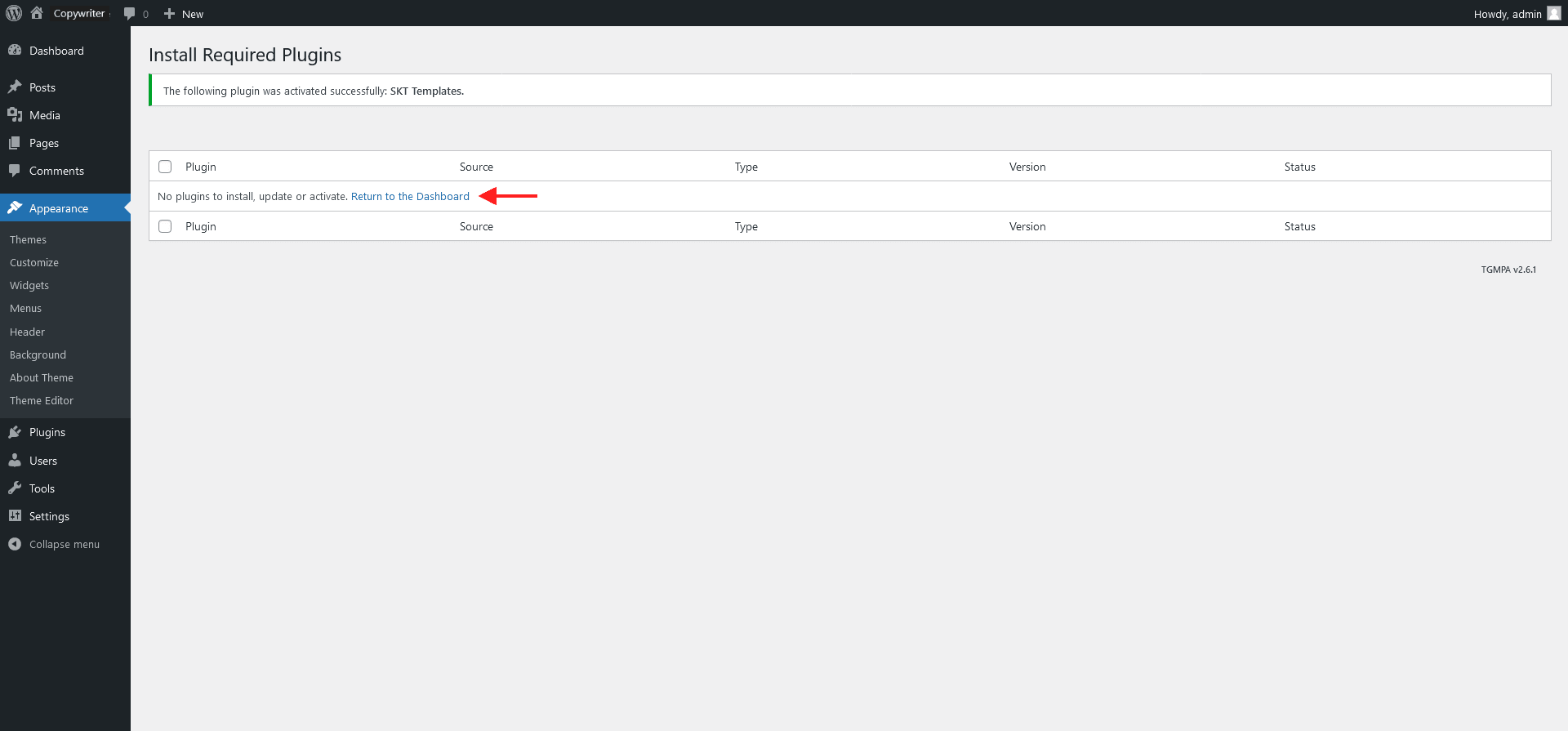
Home Page Setup
Setting home page follow below steps which are described in below screens.
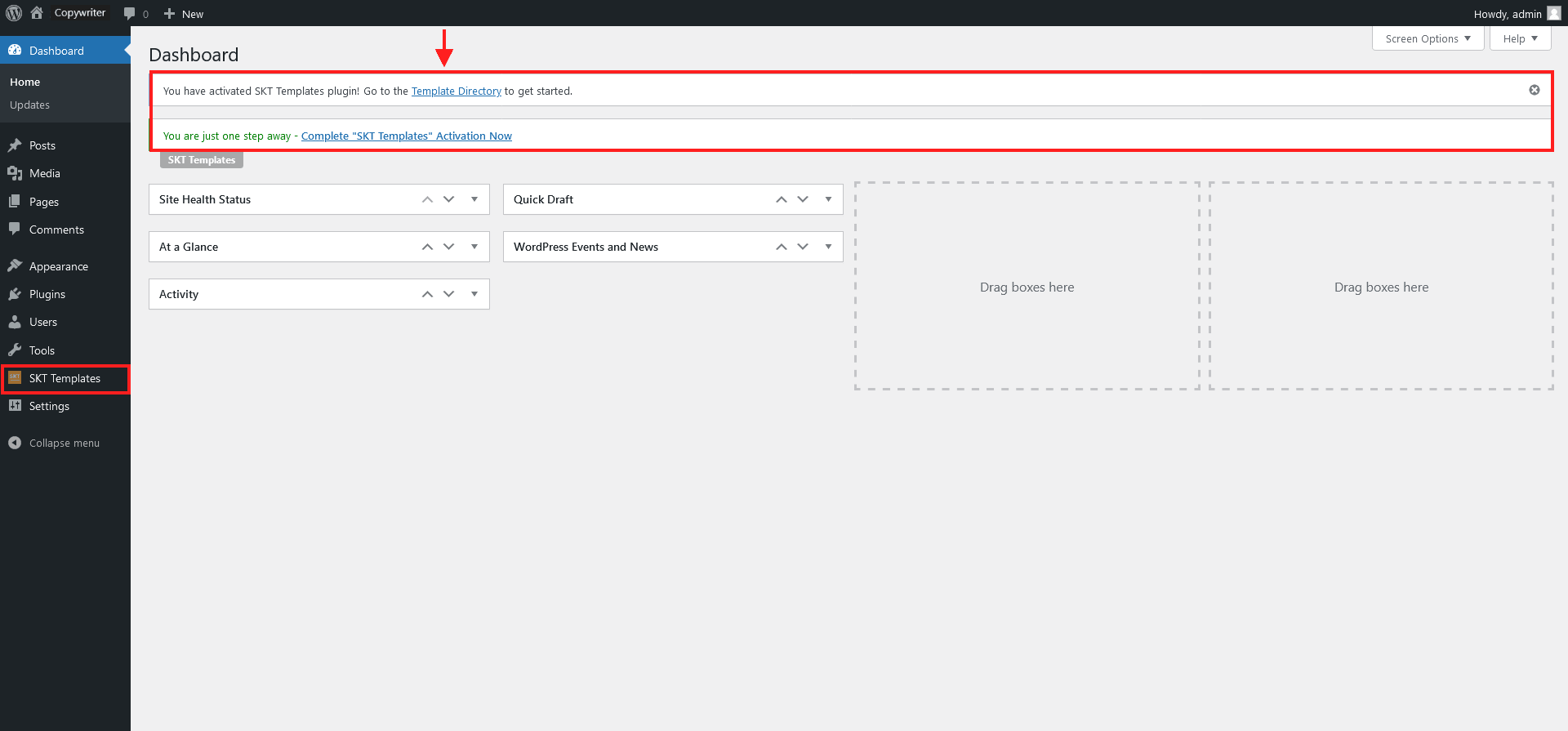
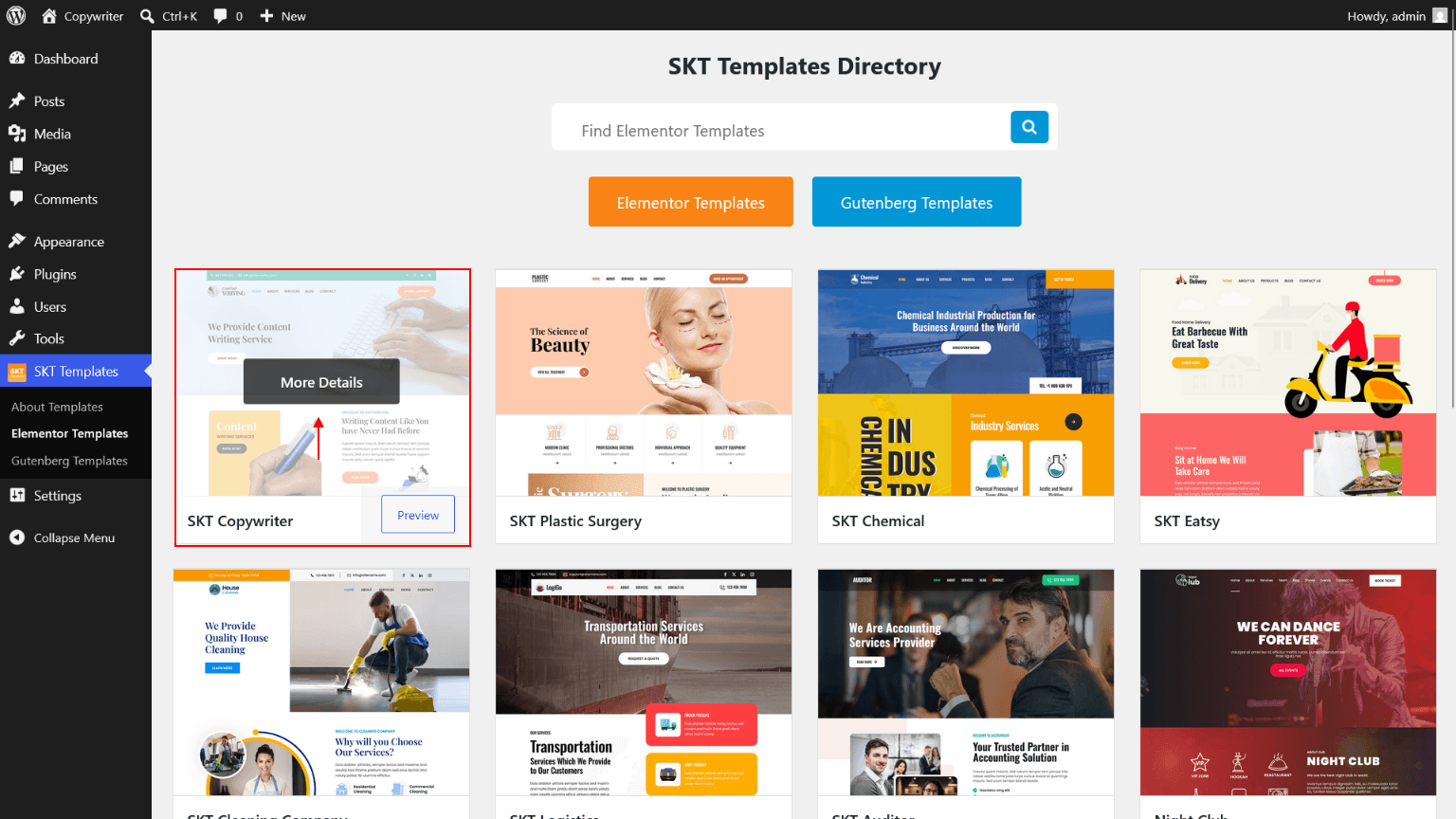
Now on SKT Templates page simply click on "Elementor Templates" button and go to "SKT Copywriter" and click on More Details button.

Import in process which takes few seconds to import.
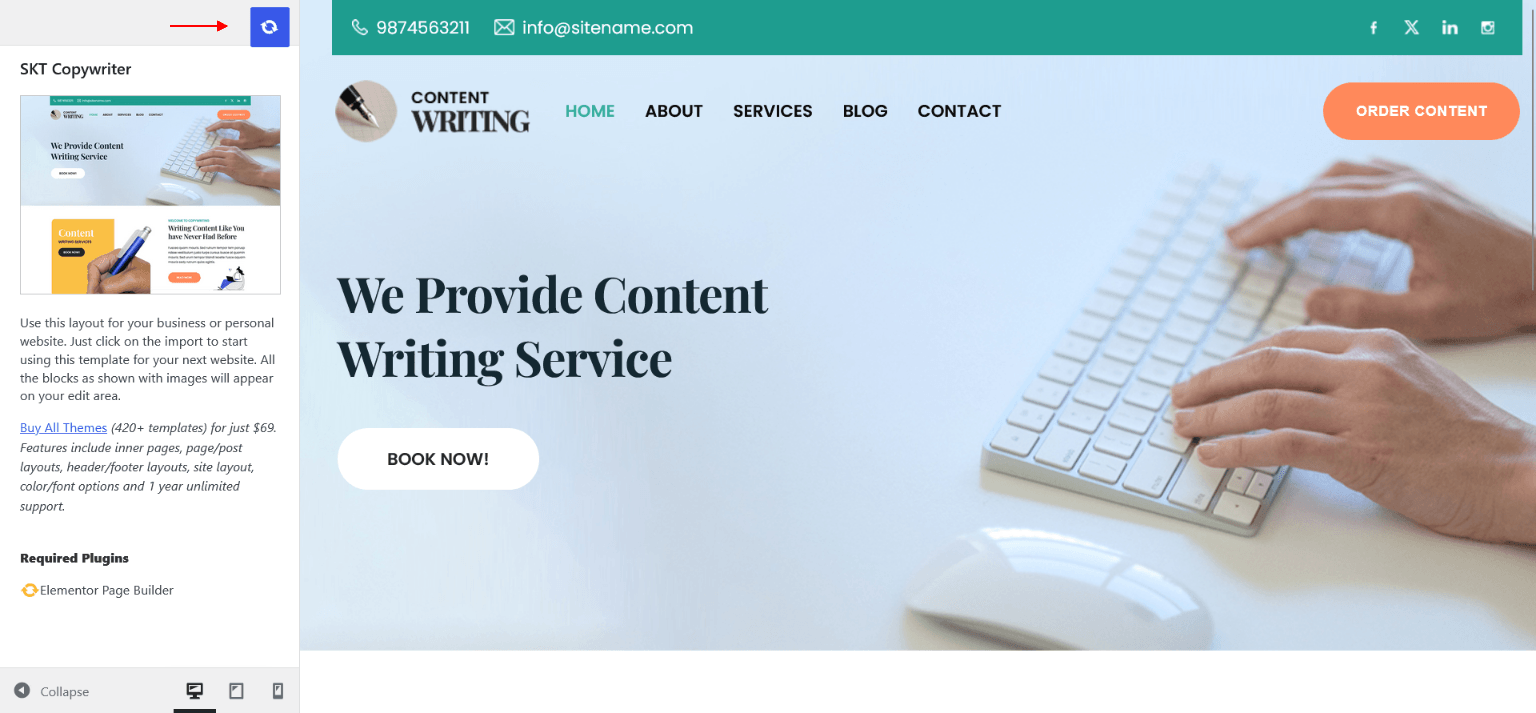
Now page imported successfully in Elementor Editor :)
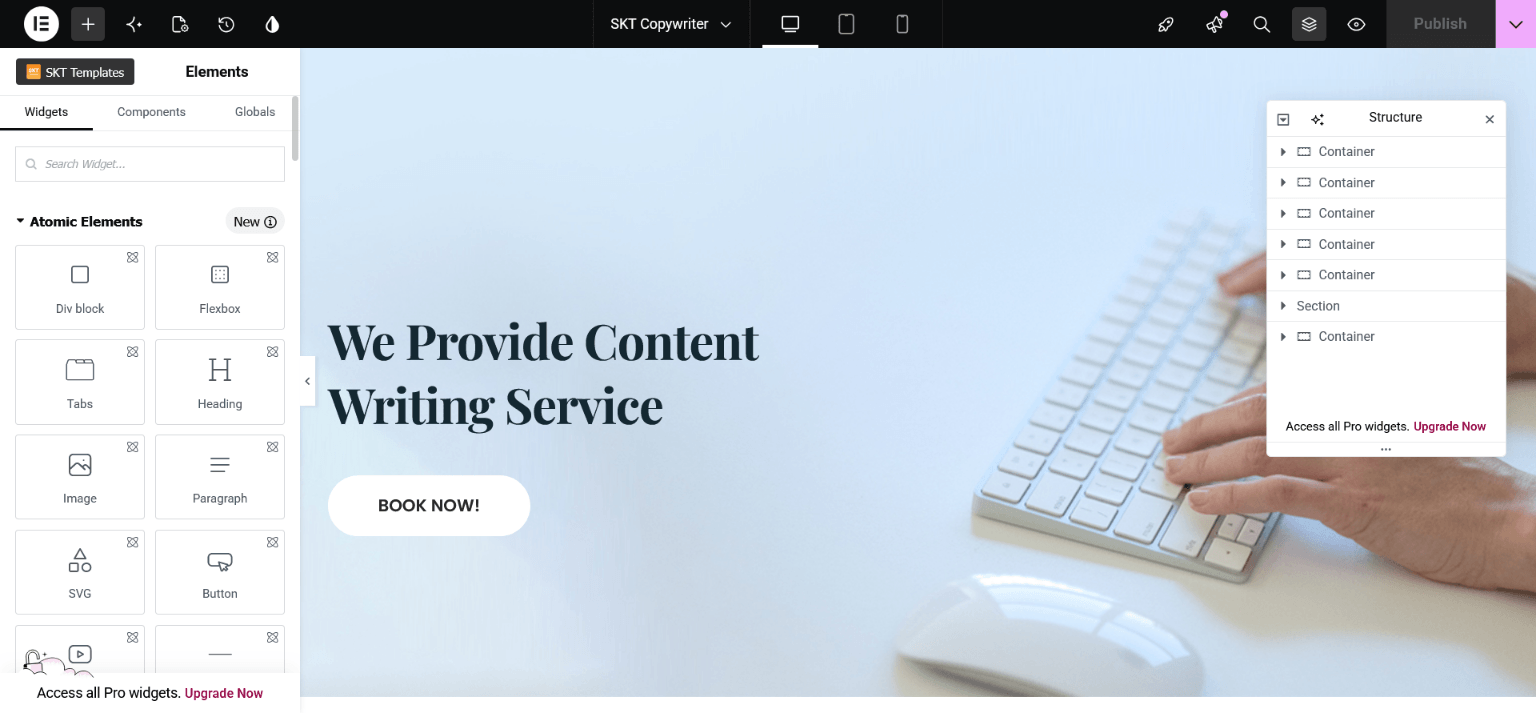
Now close page and back on dashboard Pages.
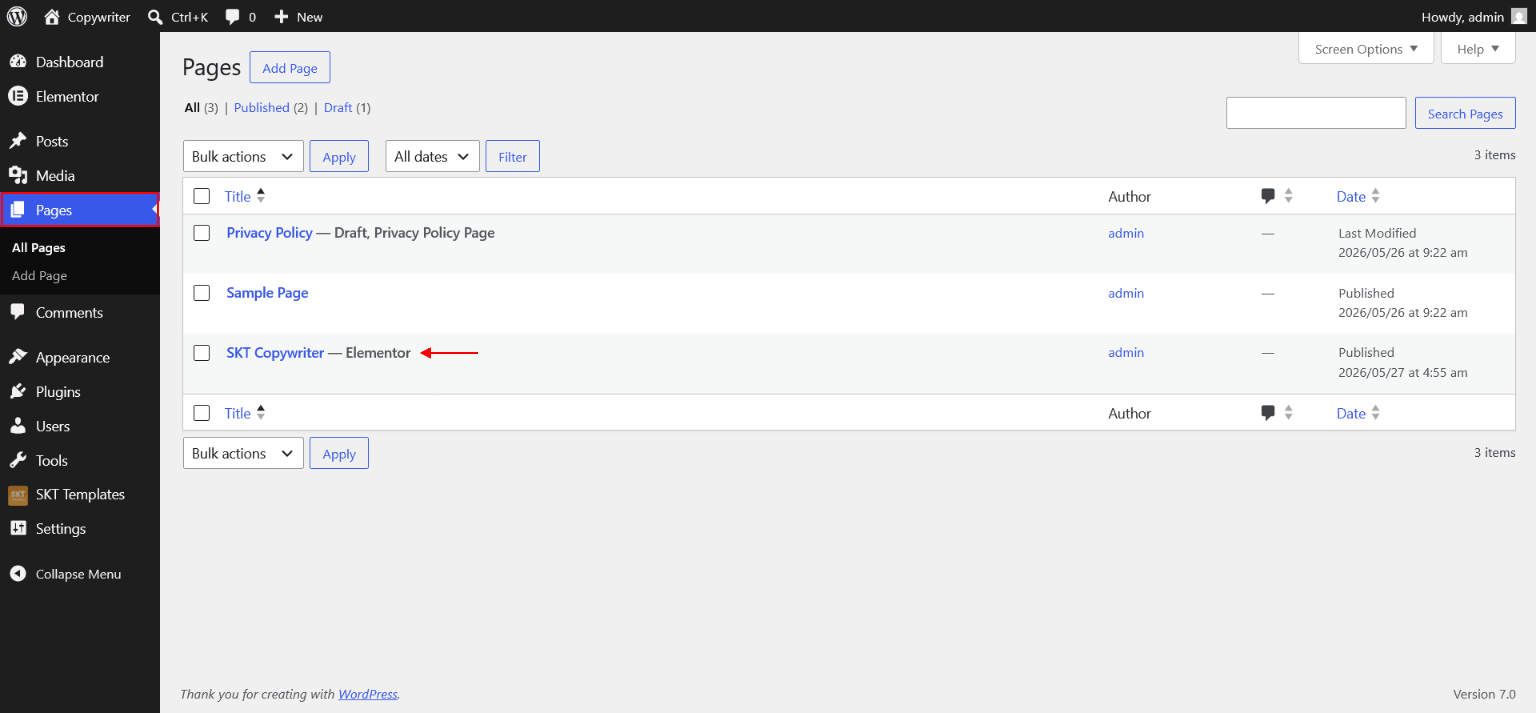
Now assign imported "SKT Copywriter" page to static Homepage.
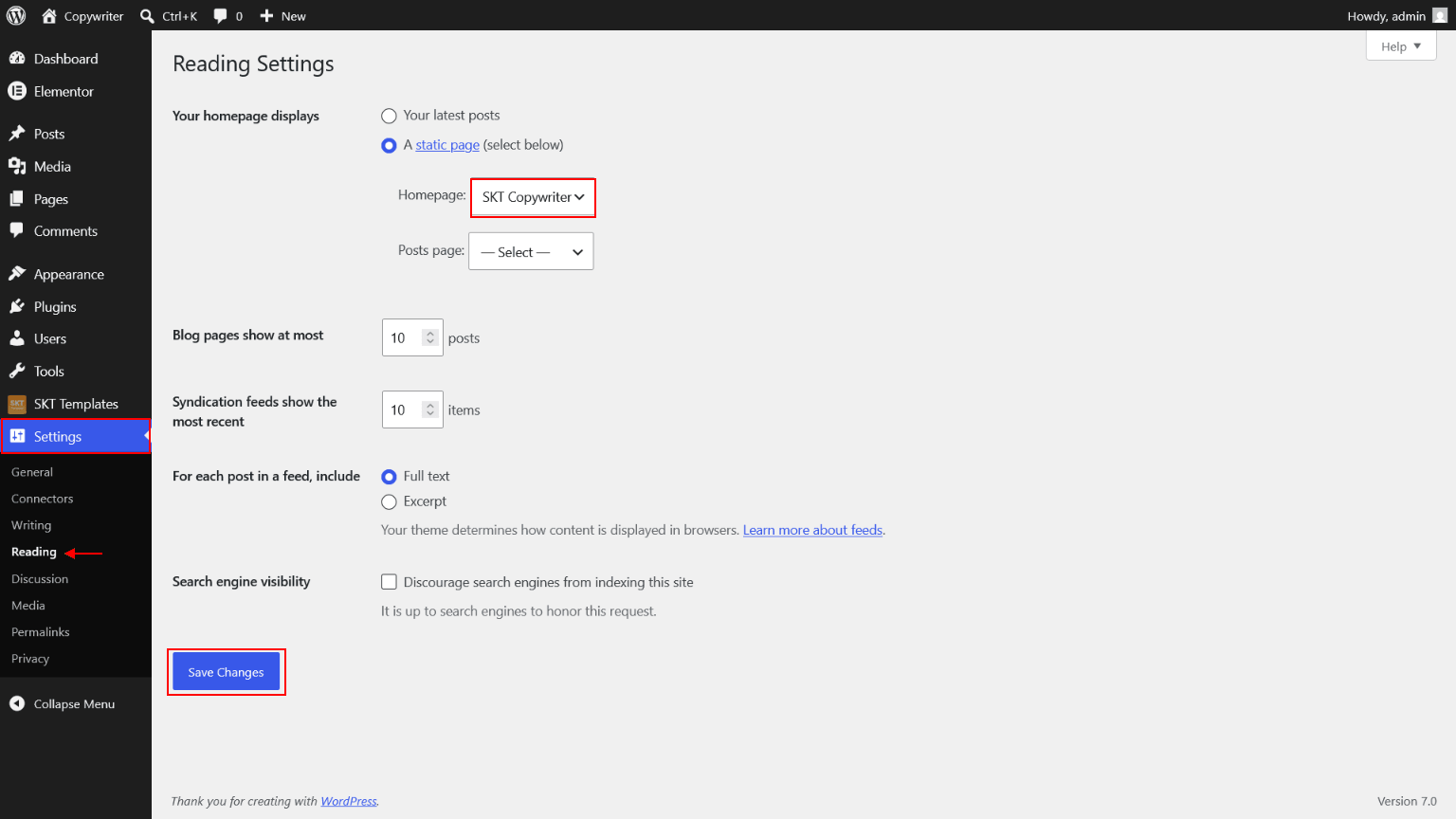
Customizer Option
Setting Logo In Header



Header Utility Bar

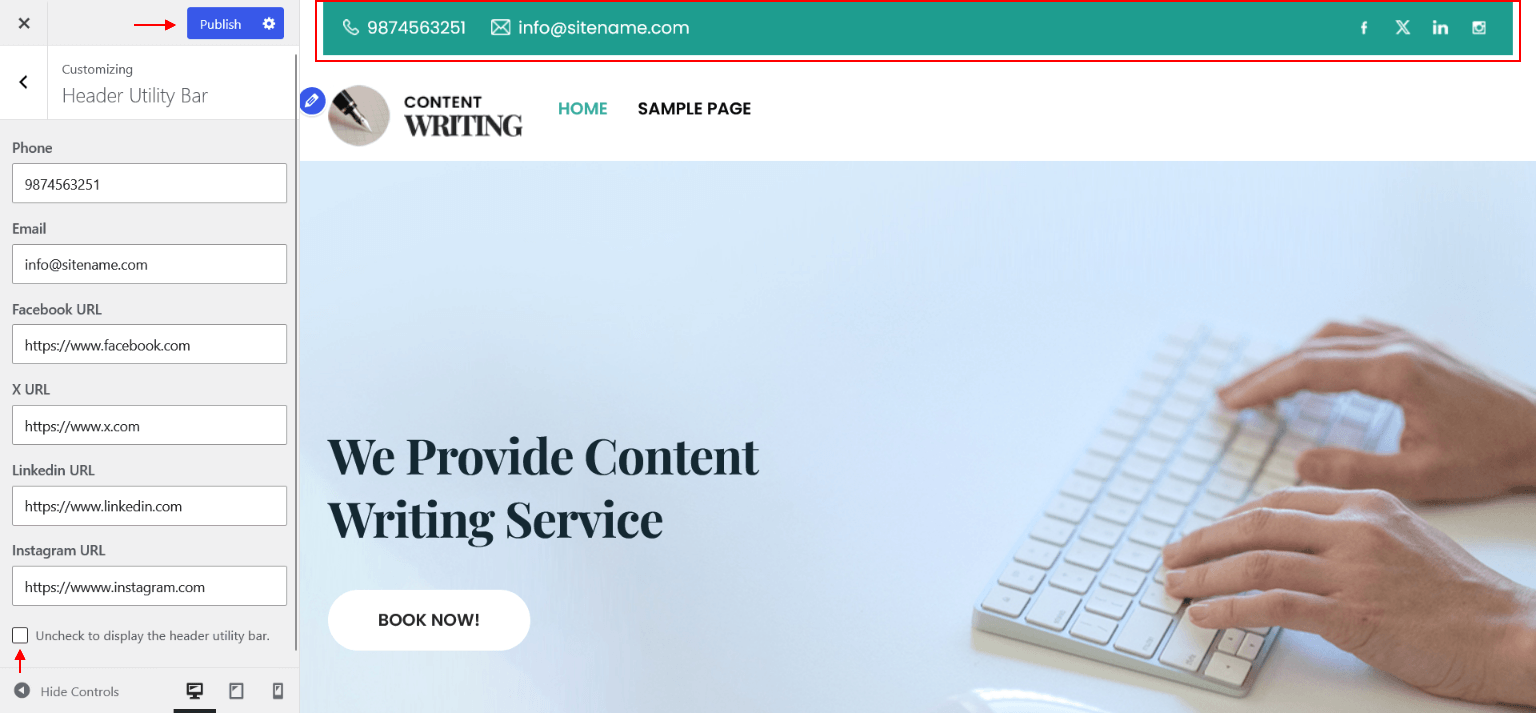
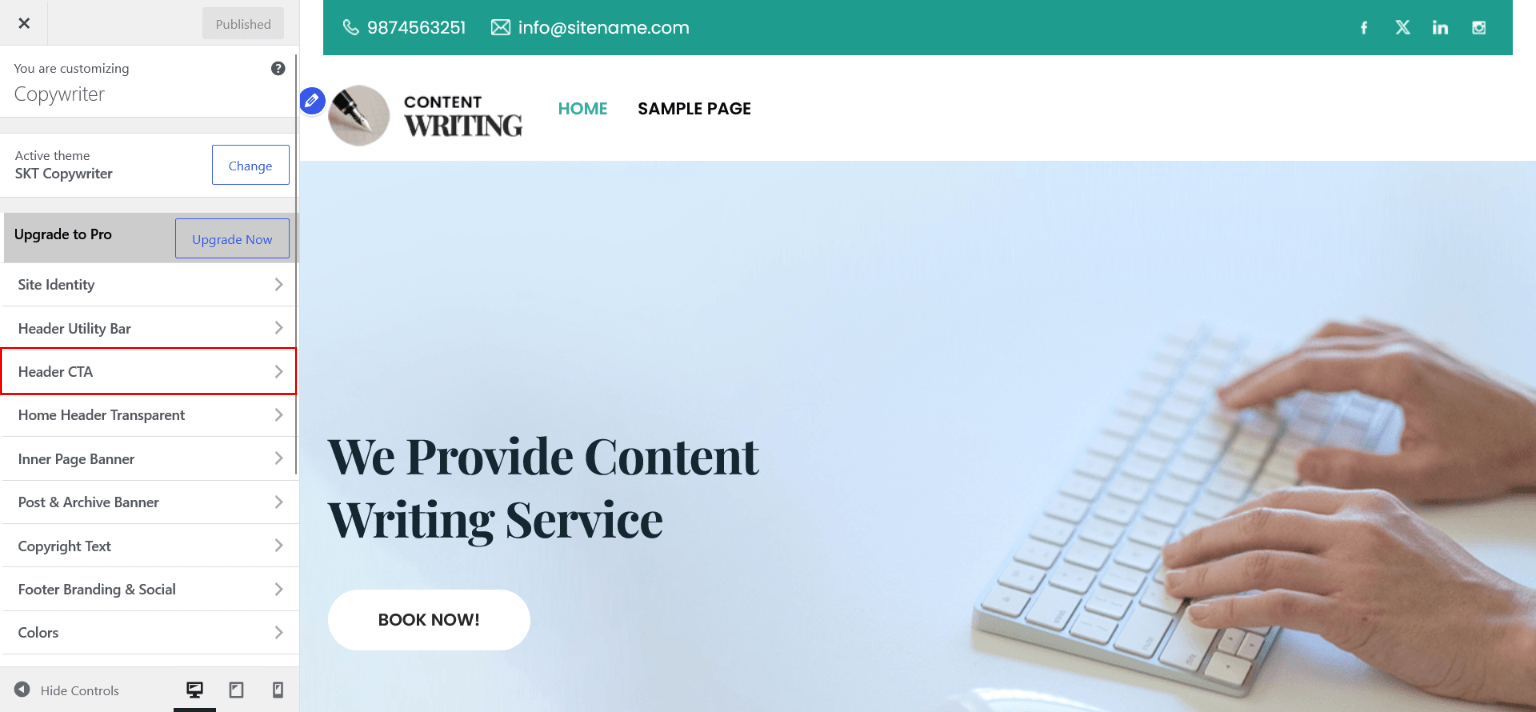
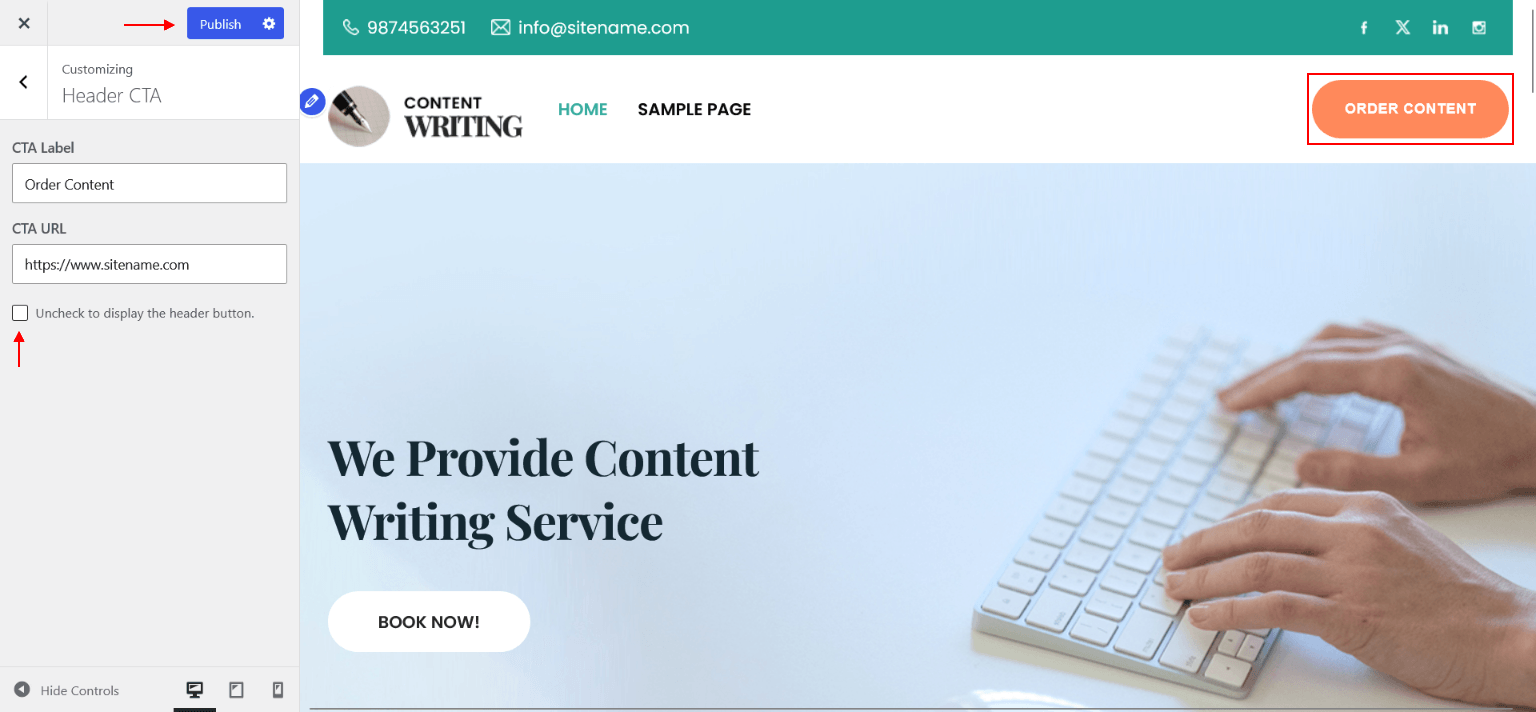
Header CTA
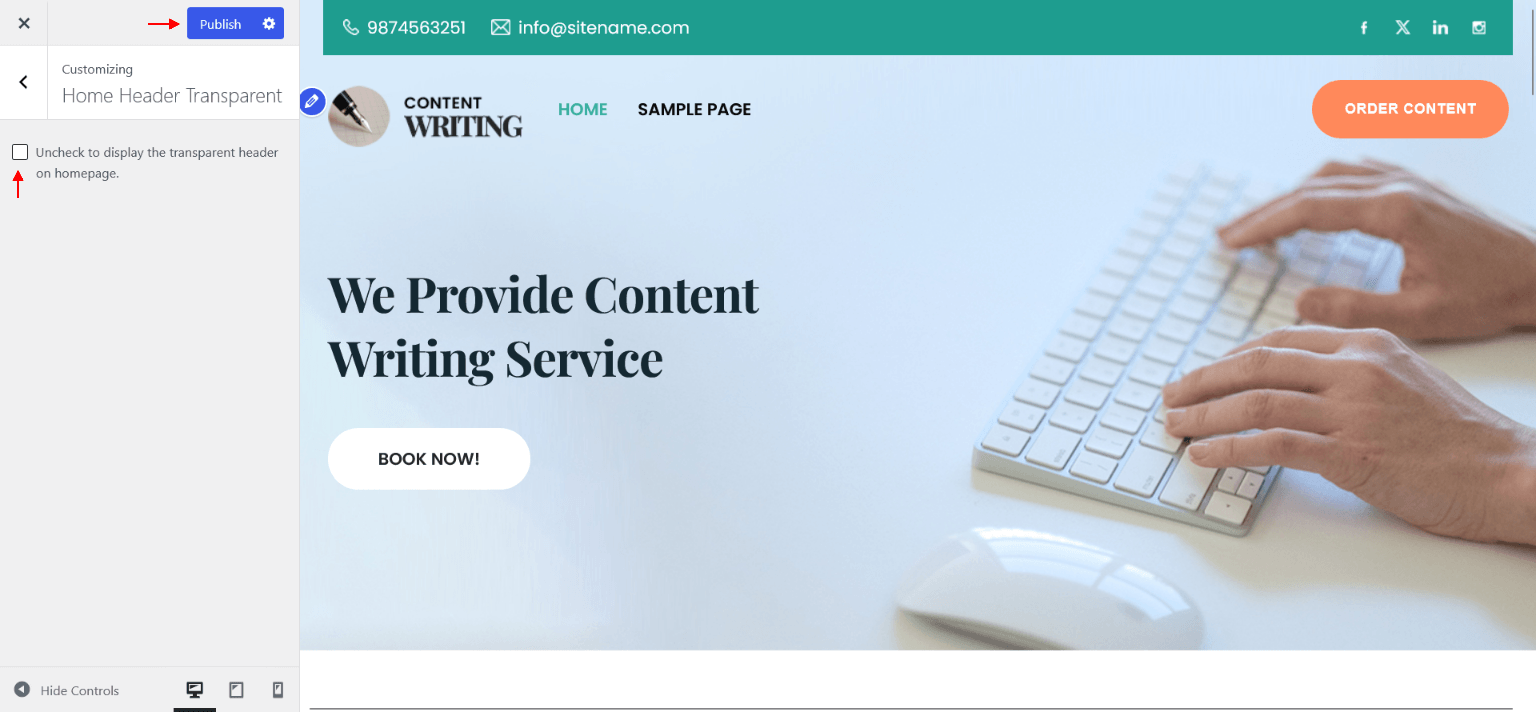
Home Header Transparent

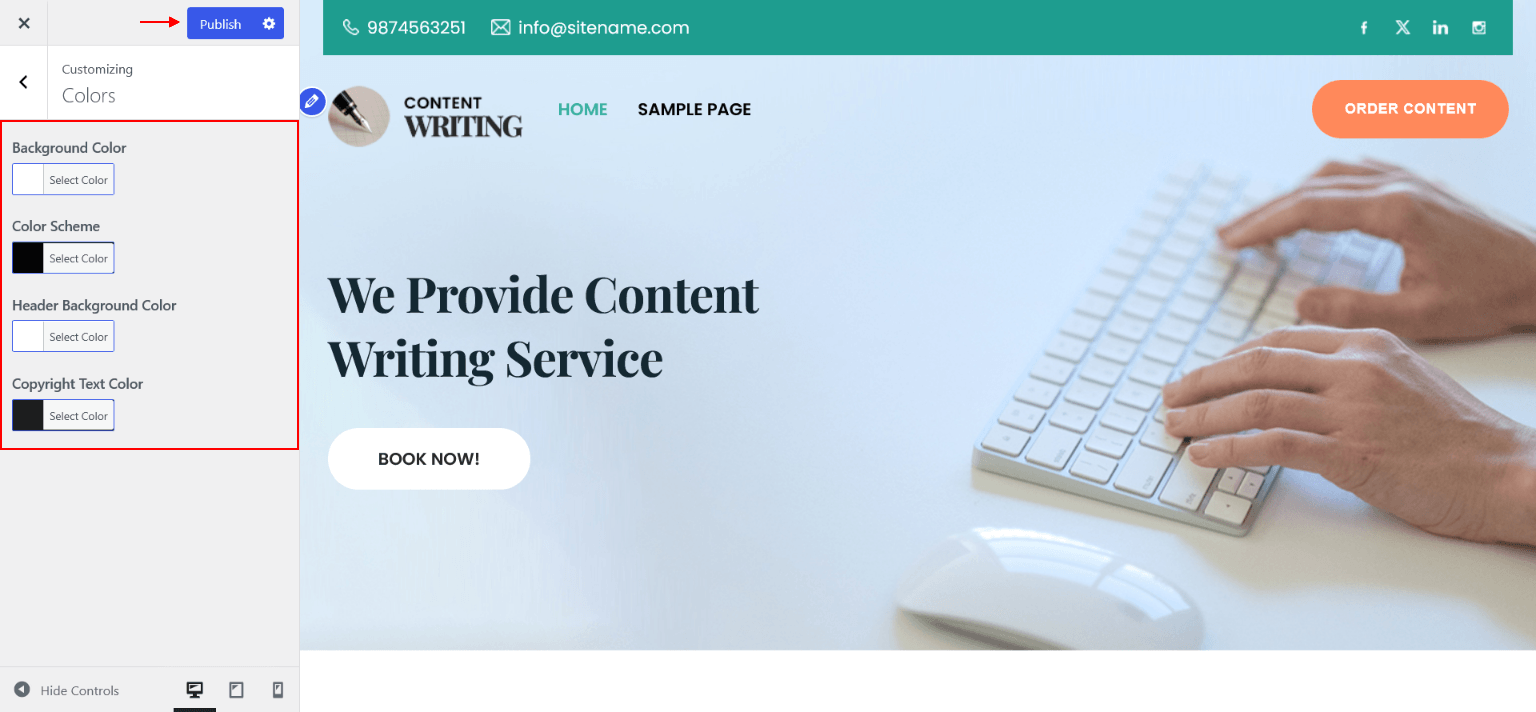
Colors
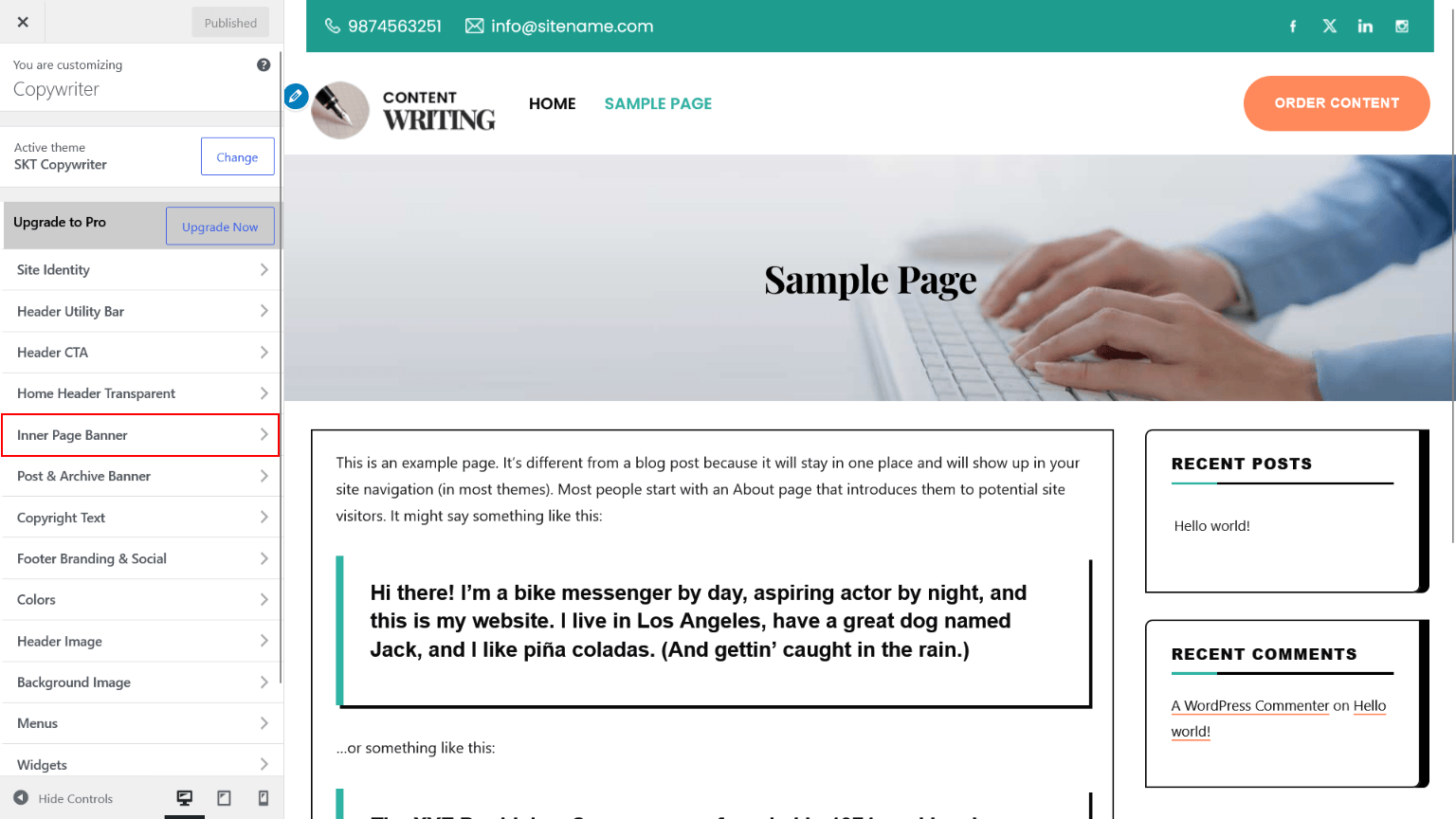
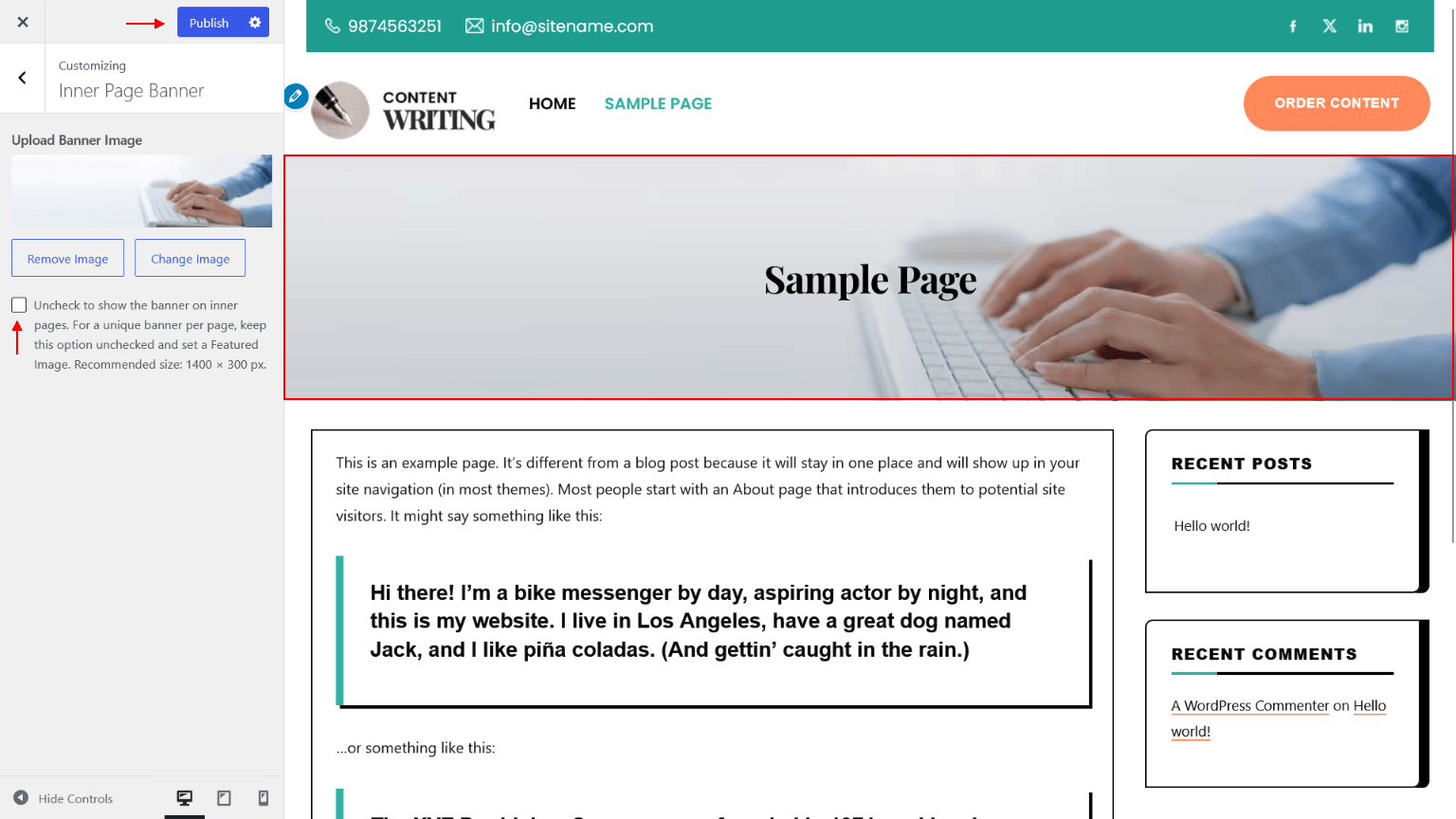
Inner Page Banner
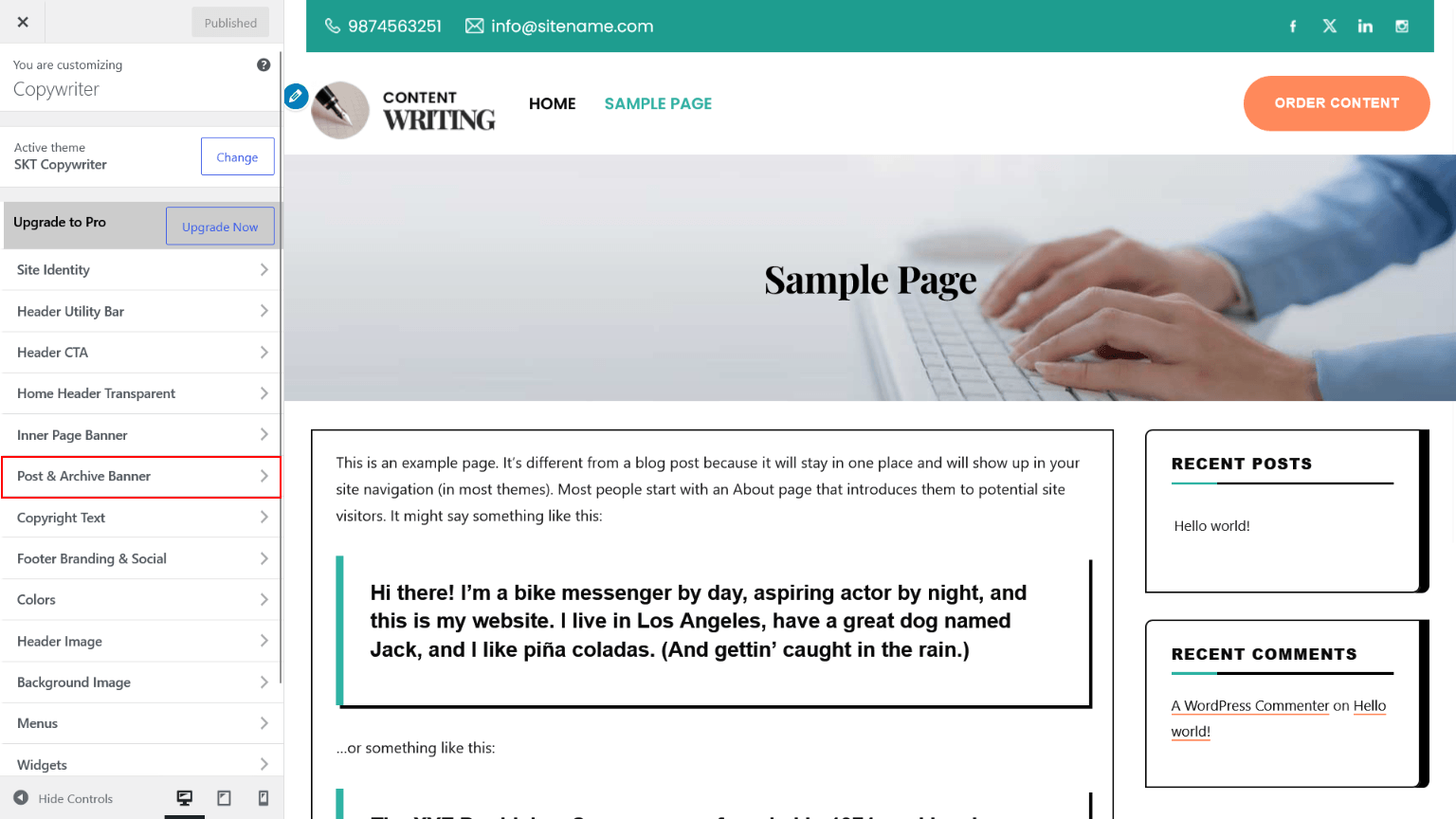
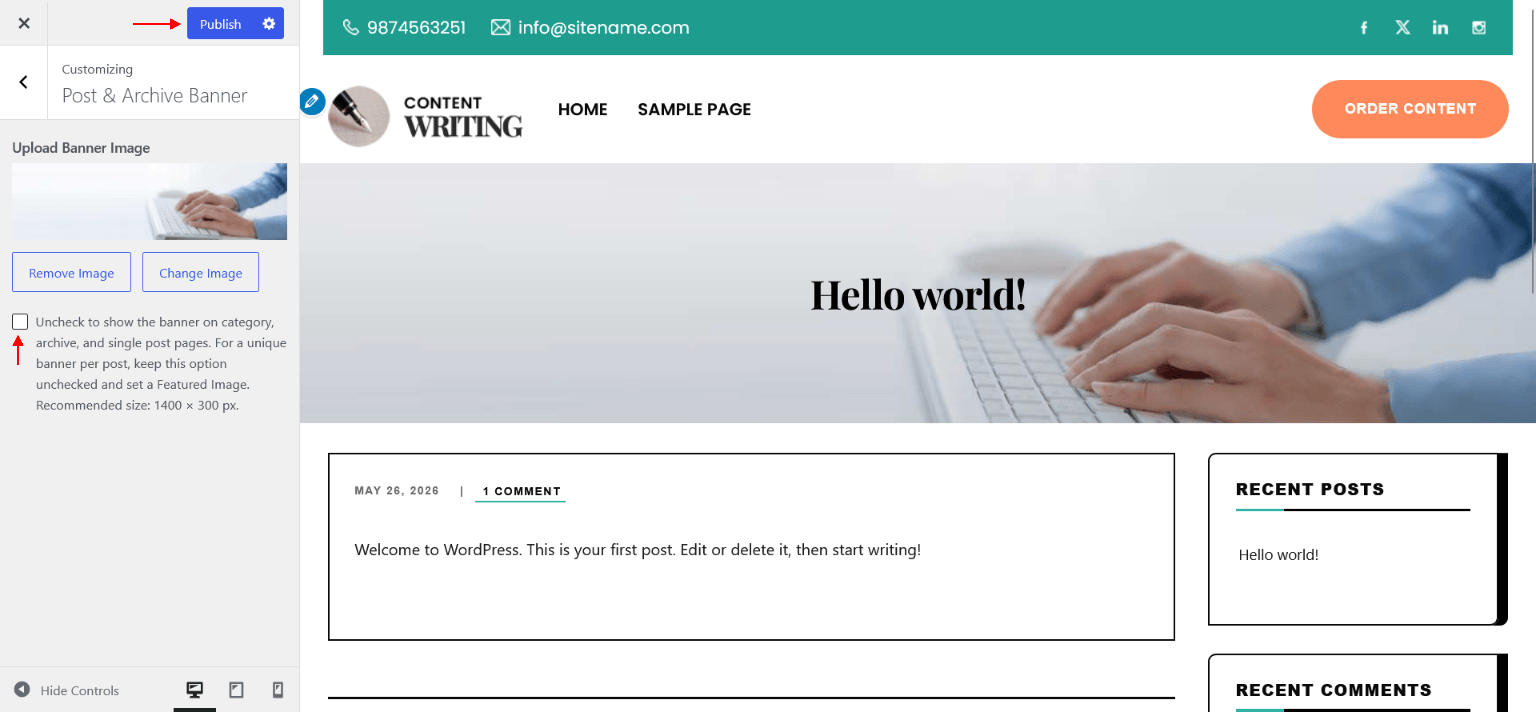
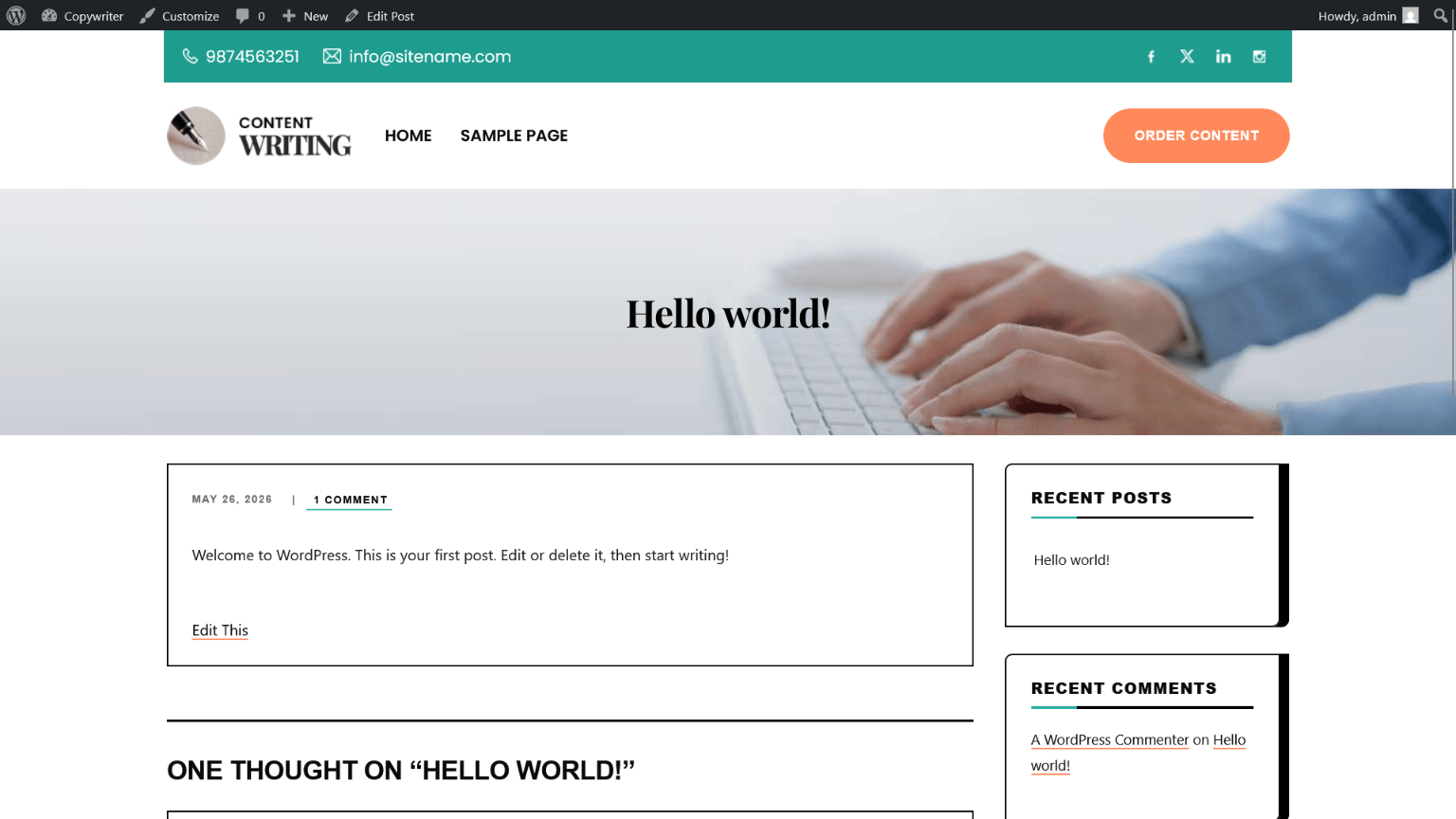
Post & Archive Banner
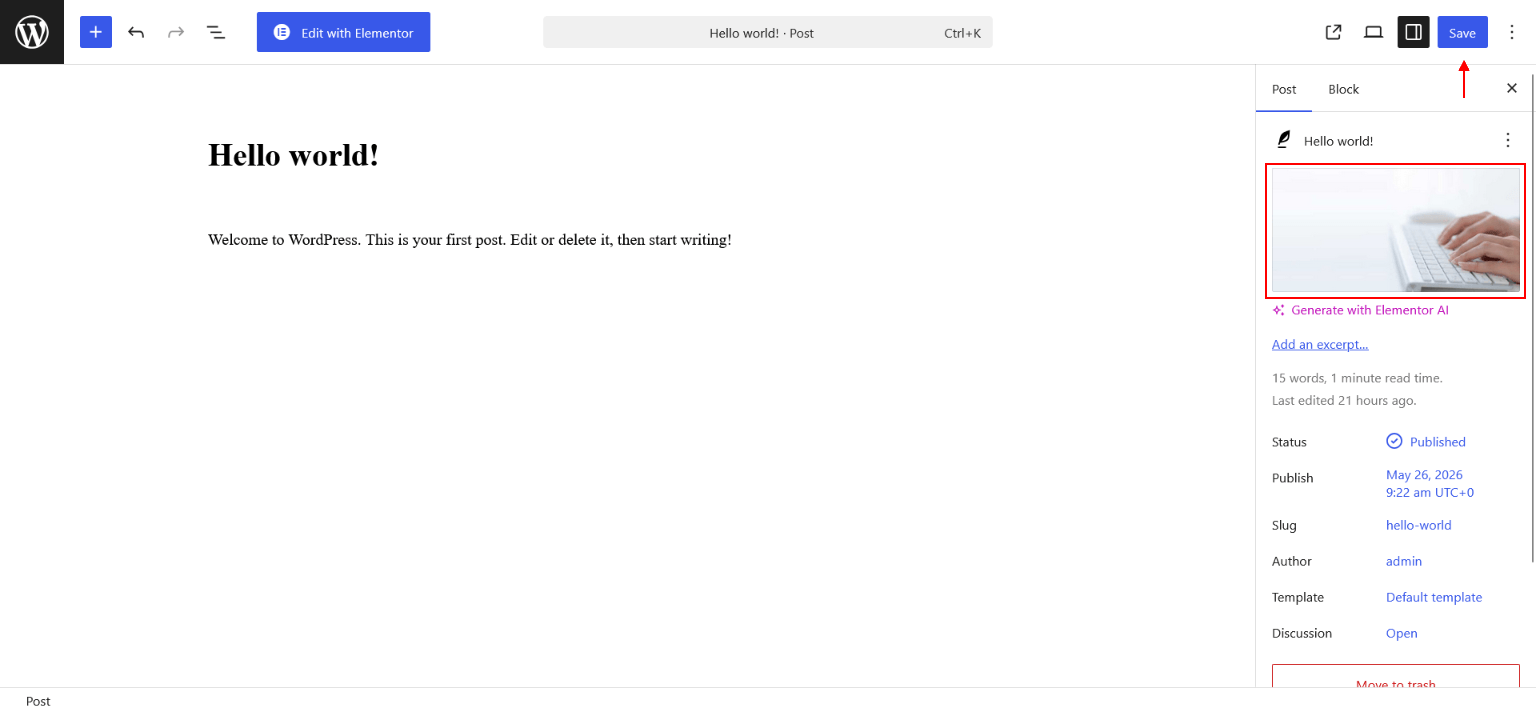
Inner Page Banner With Featured Image
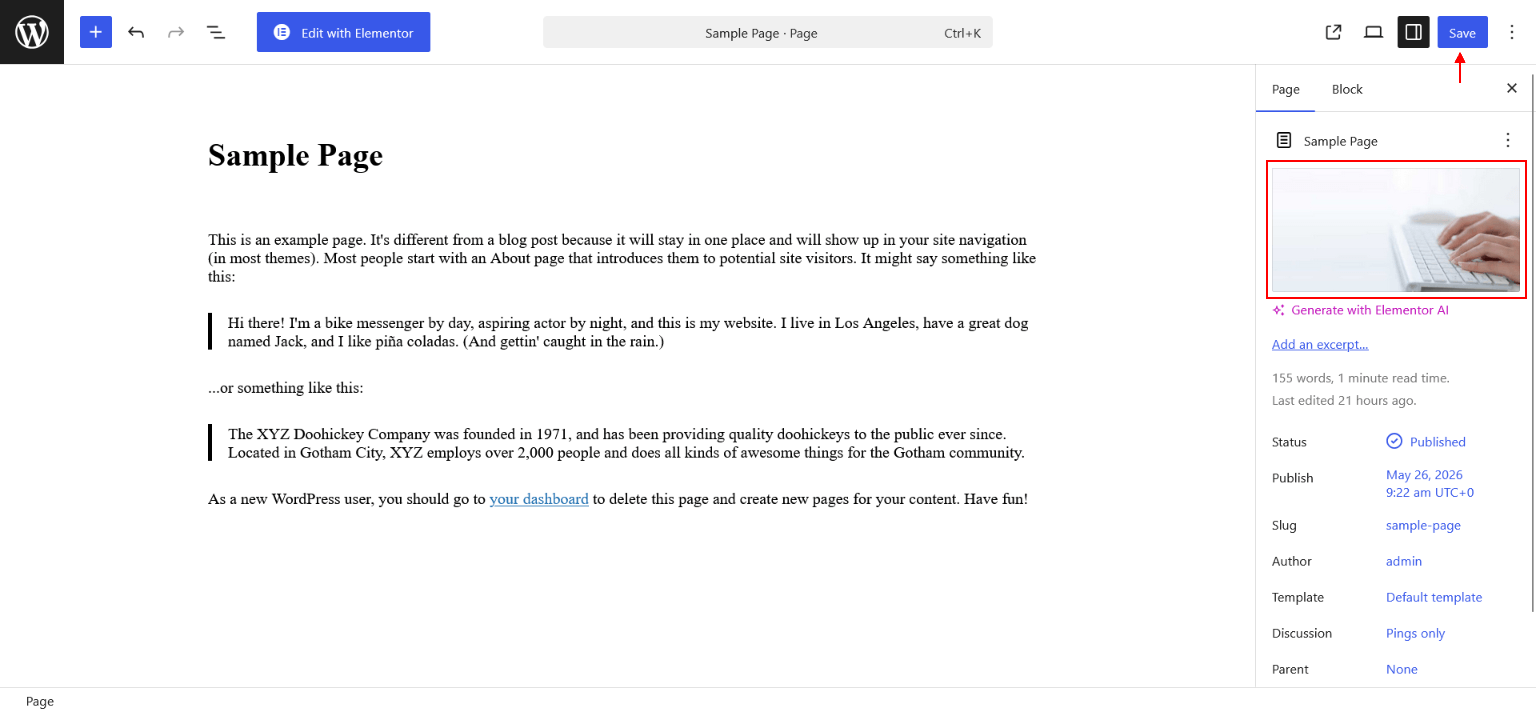
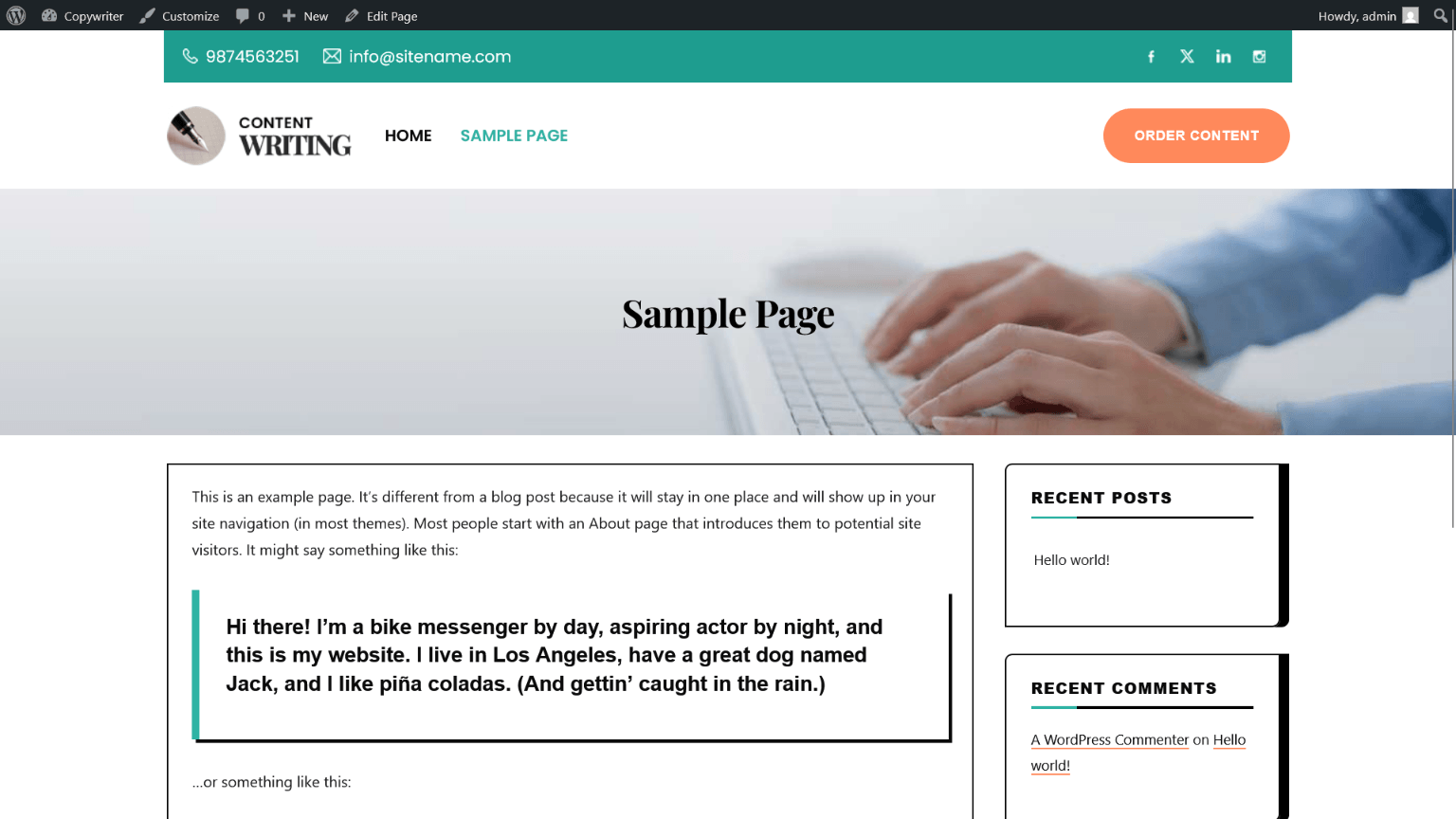
Post & Archive Single Banner
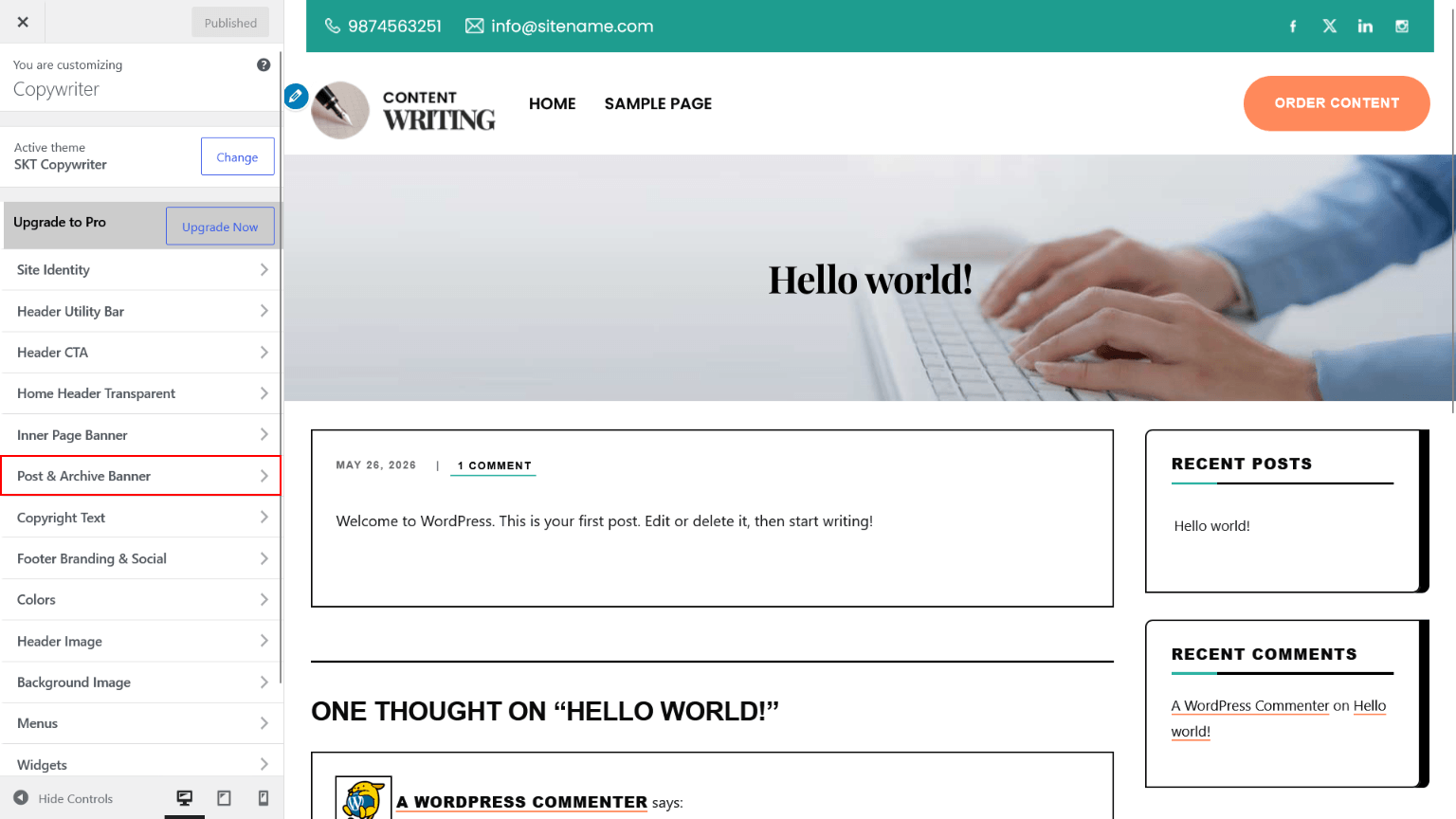
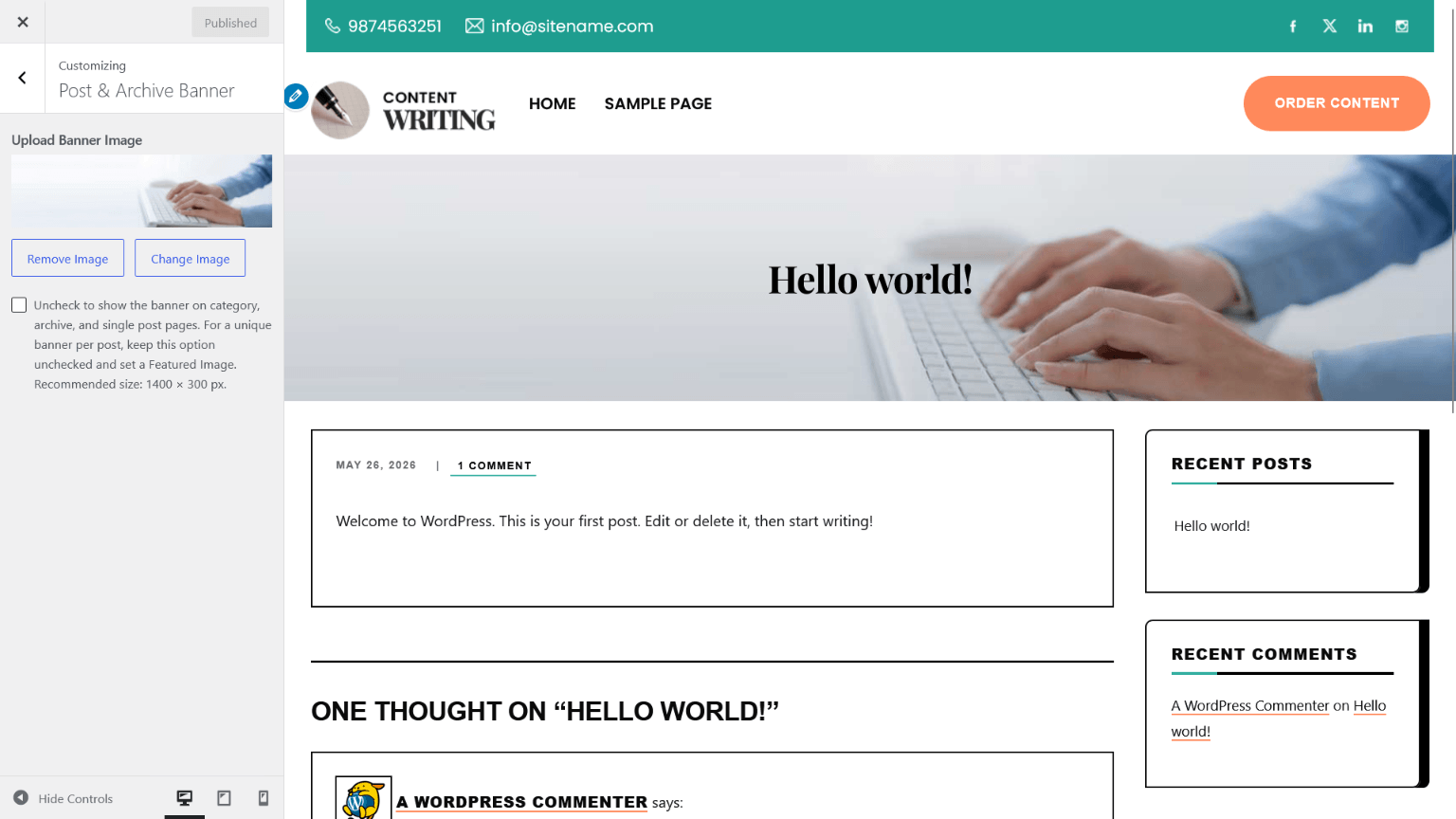
Single Post Banner With Featured Image
Setting Footer
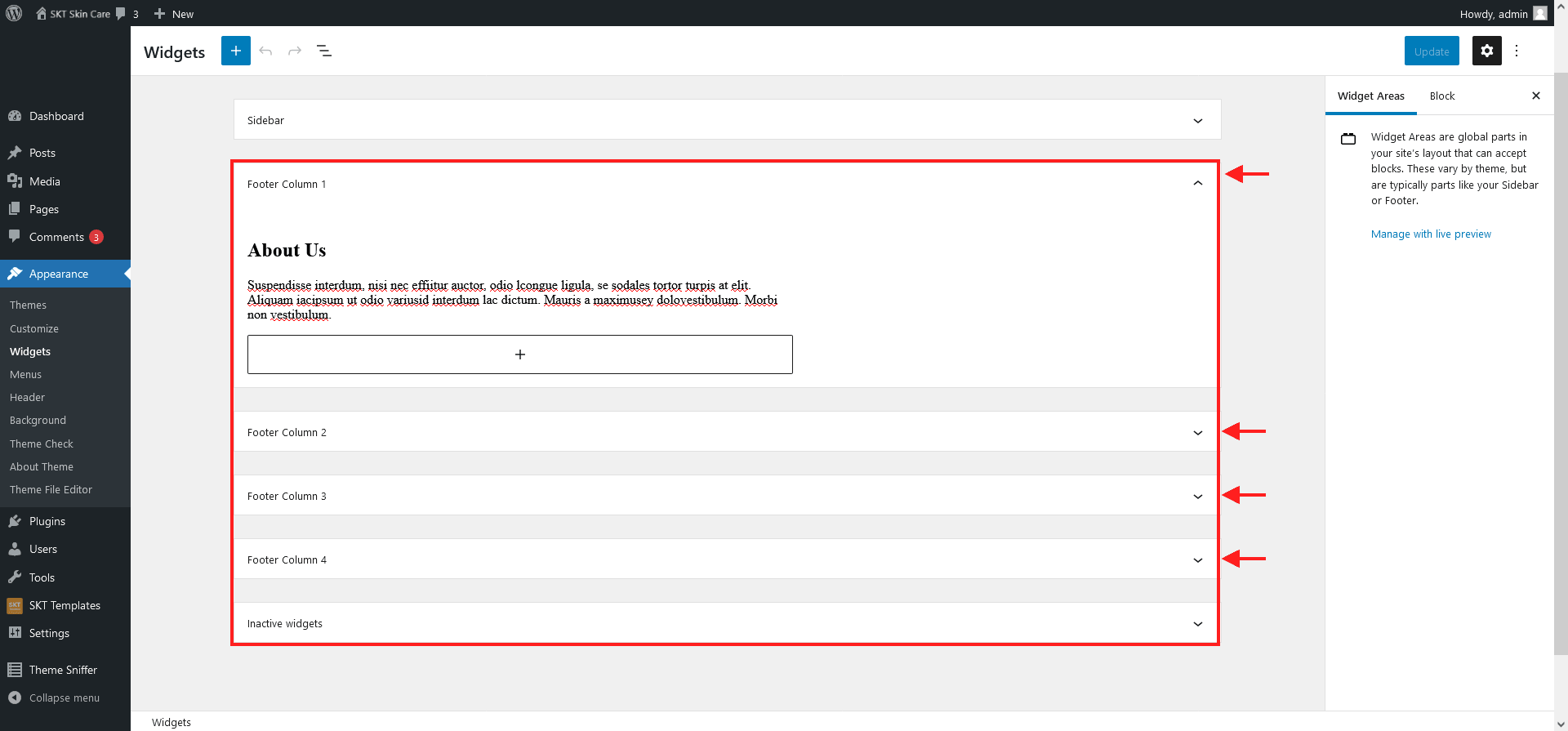
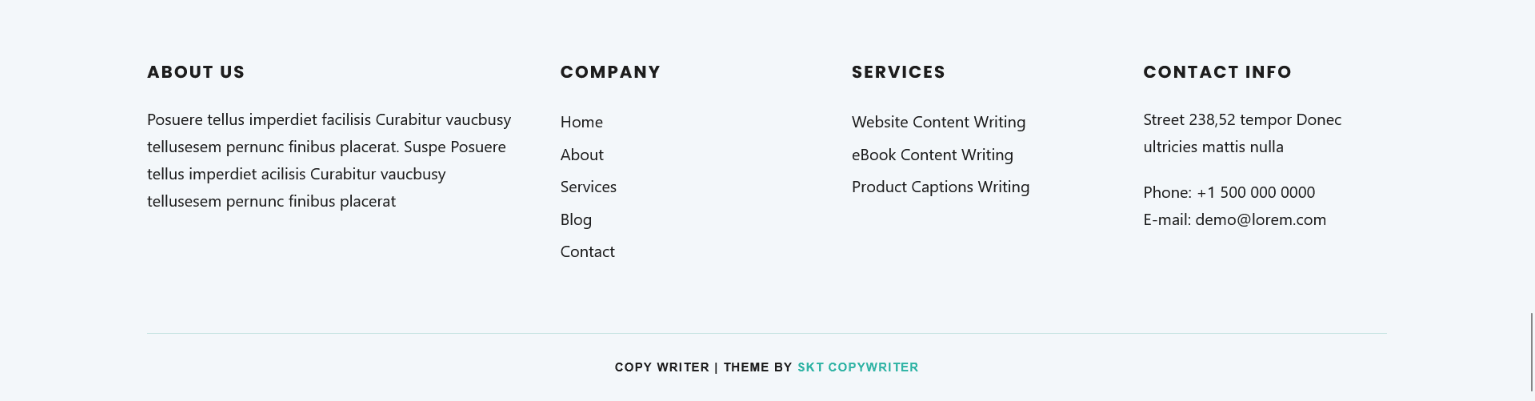
For Settings Footer going on Appearance >> Widgets here you find widgets option "Footer Column 1", "Footer Column 2", "Footer Column 3", "Footer Column 4" add widget in columns and enable it.
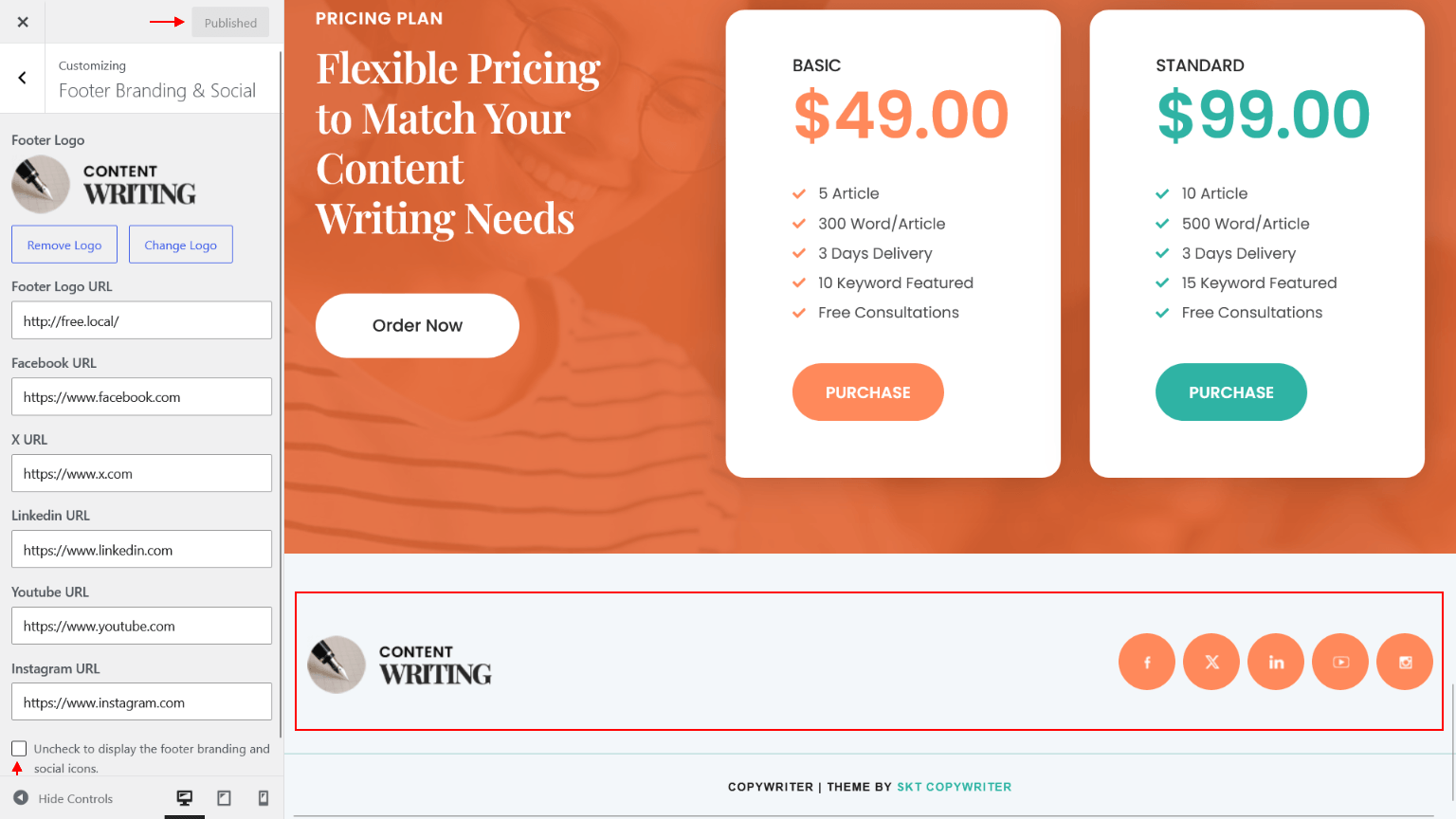
Footer Branding & Social

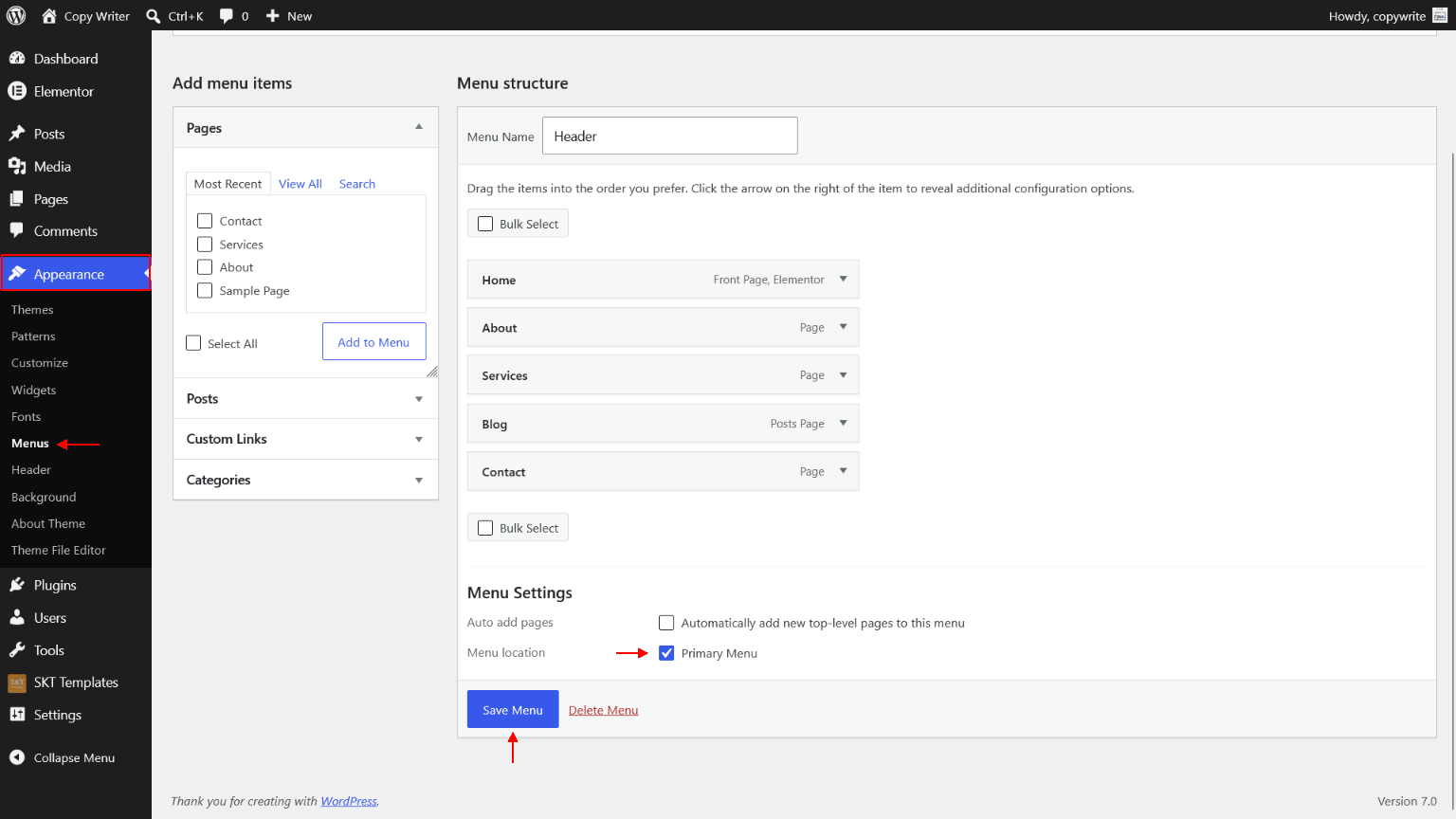
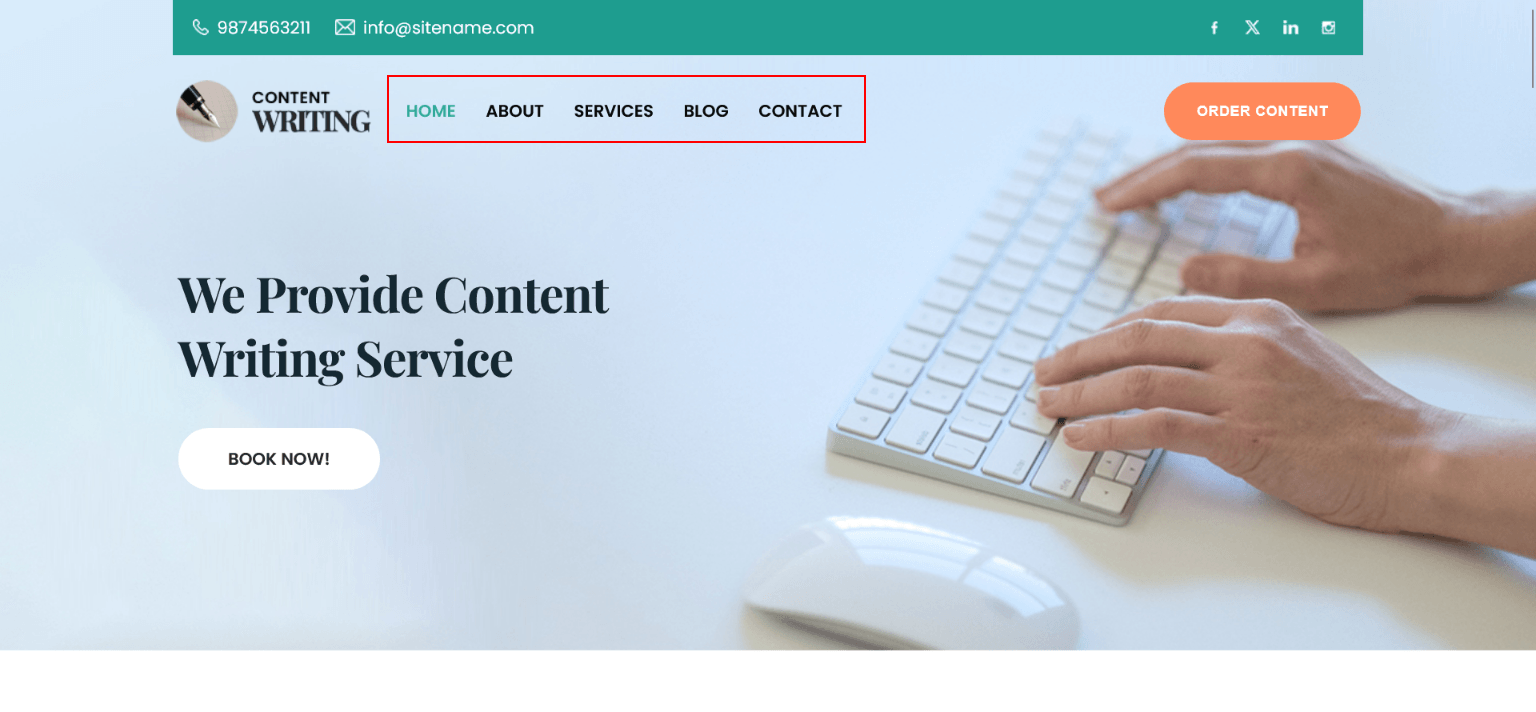
Setting Header Menu
How to Setting Header Menu?